How to Convert Moodle Course Materials to SCORM 1.2: Complete Administrator Guide
Transform static university and TAFE PDFs into SCORM 1.2 packages optimized for Moodle Activity Completion, Mobile App offline sync, and the Moodle Gradebook.
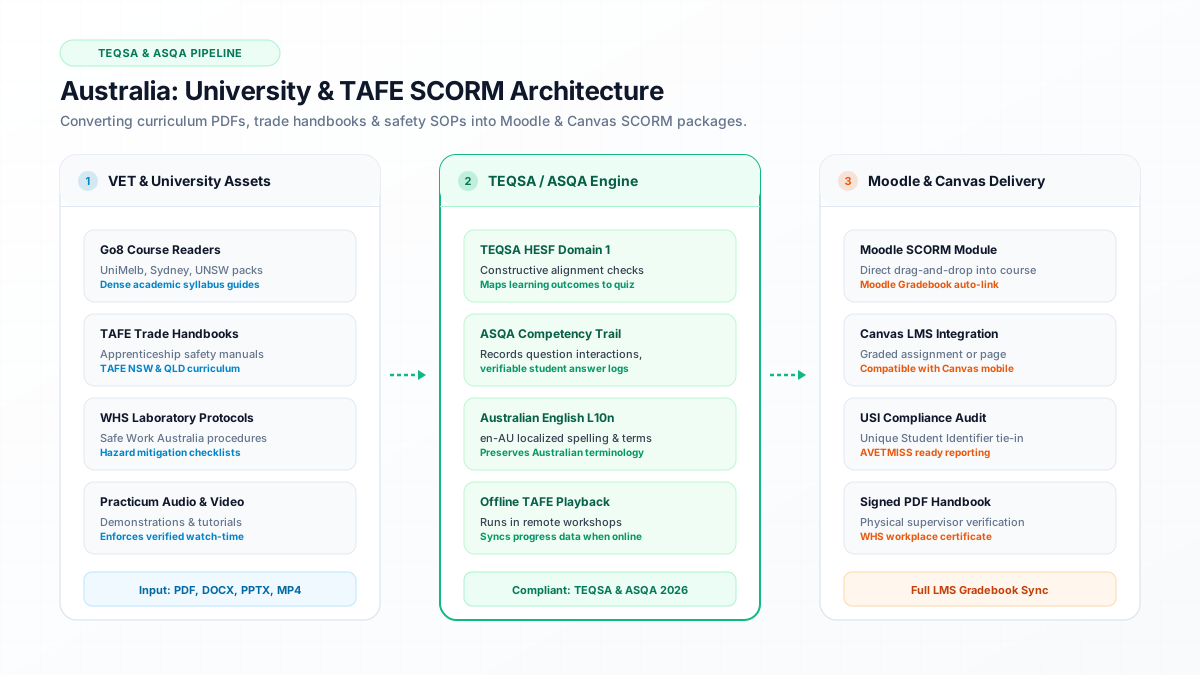
Direct Answer: To convert static documents to Moodle SCORM 1.2, upload the file to DocScorm, generate the sequence, and import the ZIP under "Add an activity or resource".
- To convert static documents to Moodle SCORM 1.2, upload the file to DocScorm, generate the sequence, and import the ZIP under "Add an activity or resource".
- Configure Moodle Activity Completion to require both a passing grade and minimum viewing completion.
- DocScorm packages are optimized under 2MB for seamless offline caching in the official Moodle Mobile app.
- Native support for both standard Moodle and Totara Learn enterprise platforms.
Direct Answer: Converting Course Materials into Moodle SCORM 1.2
To convert static documents into a Moodle-compliant SCORM 1.2 package, upload your course PDF or Word file to DocScorm, generate the instructional sequence, and download the .zip archive.
In Moodle, turn editing on, select "Add an activity or resource", choose "SCORM package", drag and drop the ZIP file, and under "Grade" configure the grading method to "Highest grade" linked directly to Moodle Activity Completion.
- 1. Upload course PDF, handbook, or slide deck to DocScorm.
- 2. Select Moodle SCORM 1.2 export profile.
- 3. In your Moodle course, click "Add an activity or resource" > "SCORM package".
- 4. Drag and drop the downloaded ZIP file into the package field.
- 5. Set Activity completion: "Show activity as complete when conditions are met" > "Require minimum score: 80%".
Essential Moodle SCORM Player Configuration Settings
To ensure the best user experience across desktop web browsers and the Moodle Mobile app, configure the following appearance parameters in Moodle:
| Setting Name | Recommended Value | Reasoning |
|---|---|---|
| Display package | Current window | Prevents browser popup blockers from suppressing the course |
| Student skip content structure page | Always | Bypasses the redundant Moodle table of contents view |
| Disable preview mode | Yes | Ensures attempts are tracked and written to the gradebook |
| Auto-continue | Yes | Automatically advances students to subsequent course activities upon passing |
| Grading method | Highest grade | Encourages student mastery through retakes without penalizing early attempts |
Connect your instructional workflows directly to DocScorm's course creation tools and validators:
Convert PDFs (Up to 200 Pages), DOCX, PPTX, or MP4 Videos into SCORM in 60s
Open DocScorm Studio or explore the Pro Plan (50 monthly credits + 1-click multi-language bundles + embedded course-source.json round-trip editing).
Frequently Asked Questions
Does Moodle support SCORM packages created with DocScorm on mobile?
Yes. All DocScorm packages are lightweight (<2MB) and fully responsive, allowing students using the official Moodle Mobile app to download courses for offline completion in remote areas.
Can I track which specific questions a student missed in Moodle?
Yes. Because DocScorm writes to cmi.interactions, instructors can navigate to the SCORM package in Moodle, click Reports > Track details, and view every individual response choice and timestamp.